You solved the tech errors. Now Google can open your website. But your pages are still not coming up on Google. Why? Because of on-page SEO. On-page SEO is just what you write and set on each page. It tells Google 3 things:
- What is this page about
- Who needs to read it
- Why Google should show it first
I made a 15-point checklist for 2026. Check each page one by one. I promise you will find 3 to 4 small mistakes that are stopping your ranking. Every point also has a free tool link. So you can test your own site right now.
Short answer: On-page SEO is the optimization of individual page elements, including title tags, headings, content, images, and internal links, so Google can understand what the page covers and rank it for the right searches. In 2026, on-page SEO also includes structuring content for Google AI Overview and AI-powered search tools like ChatGPT and Perplexity.
What Is On-Page SEO in 2026, and Why Can’t You Ignore It?
On-page SEO means the work you do on the page itself. It’s not about backlinks. It’s not about site speed.
It’s everything you can change on your own, page by page, without asking anyone for help. But in 2026, on-page SEO is not just about adding keywords.
Now Google checks 4 more things:
- Does your page match what people are searching for
- Is your content deep and helpful
- Do you look like an expert – E-E-A-T
- Does your page answer better than other pages
So if your page has all SEO things but readers don’t like it, Google will still not rank it. The good part?
On-page SEO is the fastest way to grow. Backlinks take months. Authority takes time. But on-page fixes can bring better ranking in just a few days. Before diving into on-page optimization, make sure your technical foundation is solid. Read our complete SEO audit checklist 2026 if you have not already run a full site check.
How to Use This On-Page SEO Checklist
Go through all 15 points for every important page on your site. Start with your homepage first. Then do your service pages. And at last, check your blog posts. Each point will tell you what to look at and what needs to be fixed. Want fast results? Start with points 1, 2, 3, and 8 first. These 4 points give the quickest ranking boost on any kind of website.
Section 1: Title Tags and Metadata (Points 1 to 3)
Title tags and meta descriptions are the first things people see. Google sees them too. They decide 2 things:
If Google will rank your page
If people click your page
If you fix just these two, it can make the biggest difference on your whole website.
Point 1: Write Title Tags That Drive Clicks
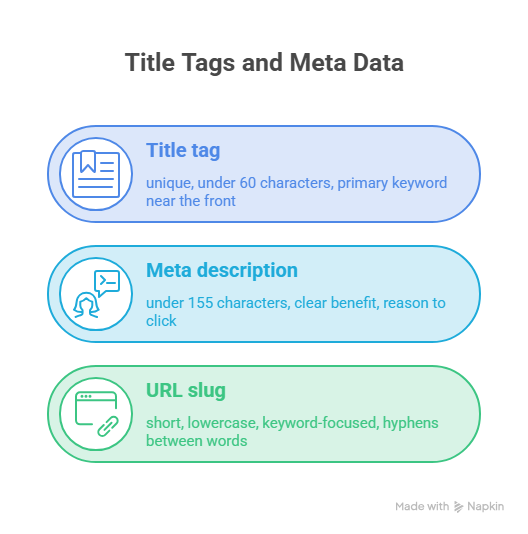
Your title tag is the blue link you see in Google. It’s the first thing Google reads to know what your page is about. So every page on your website must have its own title. And put your main keyword at the start of it. Keep your title short — under 60 characters. If it’s longer, Google will cut it. And the important part usually gets cut off. To get more clicks, add a number, a year, or a clear benefit.
For example:
“On-Page SEO Checklist 2026: 15 Fixes That Work” will get more clicks than “How to Optimize On-Page SEO”.
Because it’s clear, new, and tells people what they will get. When you check your site, look for these 3 mistakes: Same title on different pages; titles that are too general, like “Home” or “Blog”; titles longer than 60 characters where the keywords get cut off. Fix these, and you will see better results.
Free tool: Yoast SEO plugin for WordPress.
Point 2: Write a Meta Description That Makes People Click
Your meta description does not help your page rank directly. But it helps people click your link. And more clicks tell Google your page is good, so it can rank better. A good meta description makes someone stop scrolling and click your link instead of the other 3 links on Google. Keep it short — under 155 characters. Put your main keyword in it, but make it sound normal. Also add one clear benefit and a reason to click now. For example:
“Fix your on-page SEO with this free 15-point checklist. Covers title tags, headings, content, and more.” This tells people what they get and why they should click. One more thing. Never leave your meta description empty. If you do, Google will pick random lines from your page. That text usually looks bad, and people won’t click it.
Free tool: Yoast SEO plugin for WordPress.
Point 3: Make Your URL Slug Clean and Keyword-Focused
A good URL should be short and simple. Use only small letters. Put a – between words. And add your main keyword in it. For example: /on-page-seo-checklist-2026/
Anyone can tell what the page is about just by reading the link. Also remove small words like “a”, “the”, “and”, and “of”. They make the link long but don’t add any value. Don’t put dates in the URL unless your page is about news or events. If you add a year and update the page later, the link will look old, and you will have to fix it. One important note: If other websites are already linked to your page, don’t change the URL unless you really have to. And if you do change it, make a 301 redirect from the old link to the new link first.
Free tool: WordPress permalink settings, Yoast SEO.
Section 2: Heading Structure (Points 4 to 5)
Use headings to make your content easy to read for people. They also help Google understand your page better. A page with clear headings that use your main keyword will usually rank higher.
Even if the content is the same, a page with messy headings will lose to a page with good headings.
Point 4: Limit Each Page to One H1 Heading
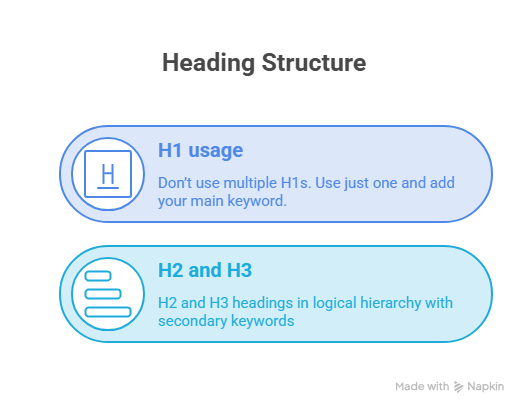
Every page should have only one H1 heading. And that H1 must include your main keyword. The H1 tells Google what your page is about. If you use two H1s on one page, Google gets confused. It won’t know which topic to rank you for, so your ranking goes down. In WordPress, your post title automatically becomes the H1. So don’t add another H1 inside the content. Also, don’t make your H1 too general.
“Welcome to Our Website” tells Google nothing.
But “On-Page SEO Checklist 2026” tells Google exactly what the page is about and what search it should rank for.
Free tool: Browser Inspect Element, SEO Meta in 1-Click Chrome extension.
Point 5: Use H2 and H3 Headings Strategically
After your H1, use H2 headings for your main parts. Then use H3 headings for smaller parts inside those main parts. This setup helps Google understand how your page is built. It also helps readers. They can quickly scan the page and not get lost. When people stay longer, your bounce rate goes down. Put your other related keywords in H2s when it feels natural. Don’t force them. If a heading sounds weird just to add a keyword, don’t do it. Google is smart. It understands meaning and similar words. Stuffing keywords in headings will hurt you more than help. Quick test: Read only the headings on your page.
If someone can understand what the whole page is about just from those headings, then your structure is correct.
Free tool: Any browser’s Inspect Element, Yoast SEO readability analysis.
Section 3: Content Quality and Search Intent (Points 6 to 9)
Your content is where you win or lose in SEO. Google checks if your page actually answers the person’s question better than other websites. Yes, putting keywords in the right place helps. But good content is even more important. If your page is helpful and clear, Google will rank it higher.
Point 6: Match Your Content to Search Intent
Search intent means the reason why someone searches.
Someone who types “what is on-page SEO” wants an explanation.
Someone who types “on-page SEO checklist” wants a simple list they can use right away.
Someone who types “hire on-page SEO expert” is looking for someone to do the work for them. Before you write or fix any page, go to Google and search your main keyword. Look at the pages that are already ranking. Check what kind of content they have. How long are they? What questions do they answer? Your page should match that same style but be better than them. For example, if people search “on-page SEO checklist”, your page should start with the checklist. Don’t start with a long theory. One big mistake is writing the wrong type of content. Even if you use the right keywords, your page won’t rank if it doesn’t match what people want. Google watches how people use your page. If people quickly click back to Google after visiting your page, Google thinks your page did not help them.
Point 7: Place Keywords Naturally Throughout the Content
Put your main keyword in the first 100 words of your page. Also use it in at least two H2 headings, but only if it sounds natural. After that, don’t keep repeating the same keyword. Instead, use related words and similar phrases in the rest of your text. Google in 2026 is smart. It understands meaning.
For example, if your page is about on-page SEO, and you naturally use words like “title tag”, “meta description”, “heading structure”, and “search intent”, Google knows your page covers the topic well. Even if you only use each word once or twice. For your main keyword, aim for about 1 to 2 percent of the whole text. If you use it too much, Google thinks you are stuffing keywords, and it can hurt your ranking. If you use it too little, Google may not understand what your page is about.
Point 8: Write Content That Demonstrates E-E-A-T
E-E-A-T means Experience, Expertise, Authoritativeness, and Trustworthiness. Google uses these to check if the writer really knows about the topic. For on-page SEO, you can show E-E-A-T by doing these things: Use real data and mention where it came from. Share real examples and results from clients you worked with. Add an author bio that shows your experience.
Link to trusted websites to back up your points. At SmartSEOEdge, we wrote a blog post with strong E-E-A-T signals. It ranked #2 on Google’s first page in just 2 days. It even ranked above Facebook, which has a Domain Authority of 100. The reason? The content matched what people were searching for, and we showed real examples from our own work.
Point 9: Check Content Length and Depth
There is no perfect word count that will make you rank. But a page that explains a topic better than other pages will usually rank higher than a page that only gives a short, shallow answer. So check the pages that are already ranking for your keyword. See how long they are and how much detail they give. Try to match that depth, or do even better. For blog posts about SEO and similar topics, 1,500 to 2,500 words usually works well. For service pages, 500 to 800 words of clear, useful info is better. A 2,000-word page that just repeats the same thing will not help. Also look at the short pages on your site. If a page has fewer than 300 real words, Google gets almost no signal from it. Either make that page much longer and more useful, or combine it with another related page.
Section 4: Image Optimization (Points 10 to 11)
Images are one of the areas people forget most in on-page SEO.
If you don’t optimize them, 3 problems happen:
- Your page loads slowly
- You miss chances to add keywords
- People who use screen readers can’t understand the image
All 3 of these things can hurt your Google ranking.
Point 10: Add Descriptive Alt Text to Every Image
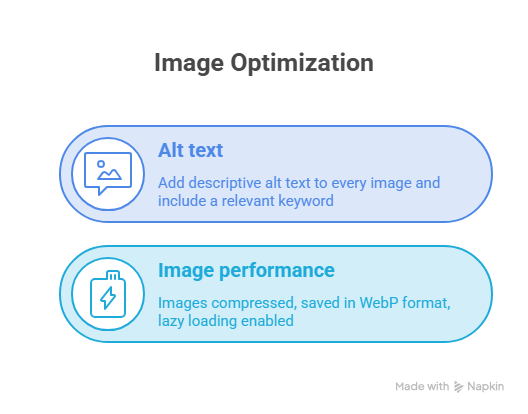
Alt text is the short description you add to an image.
Screen readers use it for blind people. Google also uses it because it can’t “see” images as we do. Google reads the alt text to understand what the image is about and if it matches your page topic. Write alt text that clearly describes the image. If it fits naturally, add a related keyword too. Good example: “on-page SEO checklist 2026 infographic showing 15 optimization steps”
Bad example: “Image1.jpg” or “photo” — these tell Google nothing. Also make sure every image on your page has alt text. If an image has no alt text, Google can’t find it in image search. And it gives zero help to your page ranking.
Free tool: Google PageSpeed Insights for image analysis. ShortPixel or Smush for WordPress compression.
Point 11: Compress Images and Enable Lazy Loading
Unoptimised images are a big reason why pages load slowly. If your page takes more than 3 seconds to load, about half of your visitors will leave before reading anything. Google sees people leaving fast and uses that as a bad ranking signal. So always compress your images before uploading them. Use WebP format if you can. It keeps the same quality but makes the file much smaller. Also turn on lazy loading in your WordPress settings. With lazy loading, images only load when someone scrolls down to them. Instead of loading every image at once when the page opens.
Free tools: Google PageSpeed Insights, ShortPixel plugin for WordPress.
Section 5: Internal Linking (Points 12 to 13)
Internal linking is one of the most ignored tools in on-page SEO. The best part? It’s free, you don’t need anyone’s help, and you can see results fast. Every time you add a link from one page to another page on your site, you do 2 things:
- You pass power from one page to the other
- You tell Google which pages matter most on your website
Point 12: Link to Relevant Pages Within Every Post
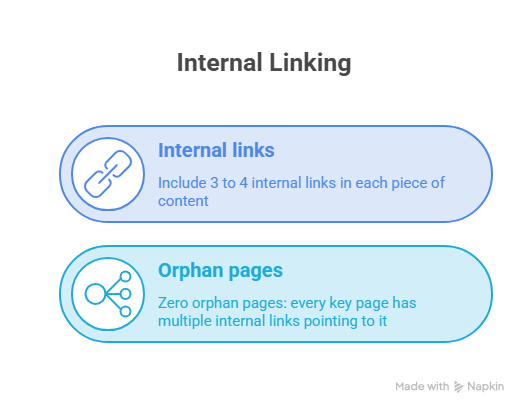
Every new post or page you publish should have at least 3 to 4 internal links.
Link to other pages on your website that are related to the topic. These links help in 3 ways:
- They help Google find and read your other pages
- They share power between your pages
- They show Google how your content topics are connected
Use descriptive anchor text that tells both Google and the reader what the linked page covers. “Click here” and “read more” are missed opportunities. Descriptive anchors such as “Complete Guide to Local SEO” and “On-Page SEO Checklist” send clear relevance signals to Google. For example, if you publish a blog about on-page SEO, link naturally to your <a href=”https://smartseoedge.com/seo-audit-checklist-2026/”>complete SEO audit checklist</a>, your <a href=”https://smartseoedge.com/keyword-research-for-beginners/”>keyword research guide</a>, and your <a href=”https://smartseoedge.com/services/”>SEO services page</a>. Each link strengthens all three pages simultaneously.
Free tool: Google Search Console Links report.
Point 13: Fix Orphan Pages
An orphan page is a page on your website that has no other pages linking to it. Even if Google finds it, that page gets almost no attention. Because it’s cut off, it doesn’t get any power from the rest of your site. That’s why orphan pages usually rank very badly. Here’s what to do: Open the Google Search Console “Links” report.
Find pages that have zero or very few internal links.
Then go to your other related pages and add links to those pages. This one fix can make hidden pages start ranking much faster. Also check your most important pages. Like your services page, best blog posts, and contact page. Each of them should have at least 5 to 6 internal links from other parts of your website.
If you want to understand why some of your pages might not be ranking despite being indexed, read our guide on why your website is ranking on Google.
Section 6: Schema Markup and Structured Data (Point 14)
Point 14: Add Schema Markup to Every Key Page
Schema markup is extra code you add to your pages. It helps Google and AI tools understand exactly what your content is about. In 2026, schema does more than just get you those fancy results in Google. It also helps your content show up in Google AI Overview, ChatGPT answers, and Perplexity results. At the very least, do this:
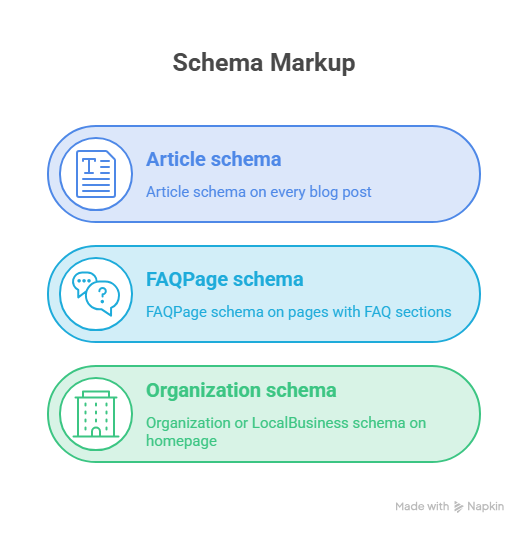
- Article schema on every blog post
- FAQ Page schema on any page that has
- FAQs Organization schema on your homepage
- LocalBusiness schema if you serve customers in a specific area If you use WordPress, Yoast SEO adds basic schema for you automatically.
For more control, you can use the free Rank Math plugin. After you add it, check if it works. Use Google’s free tool: Rich Results Test at search.google.com/test/rich-results.
Fix any errors it shows you before you stop.
Free tool: Google Rich Results Test, Yoast SEO plugin.
Section 7: Page Experience (Point 15)
Point 15: Make Your Site Faster and Fix Core Web Vitals
Page speed is something Google definitely uses for ranking.
If your page is slow, you lose both visitors and rankings. Google measures speed with something called Core Web Vitals.
The 3 main ones are:
- Largest Contentful Paint – how fast the biggest part loads
- Cumulative Layout Shift – how much the page jumps around while loading
- Interaction to Next Paint – how fast the page responds when you click
Test your speed using Google PageSpeed Insights.
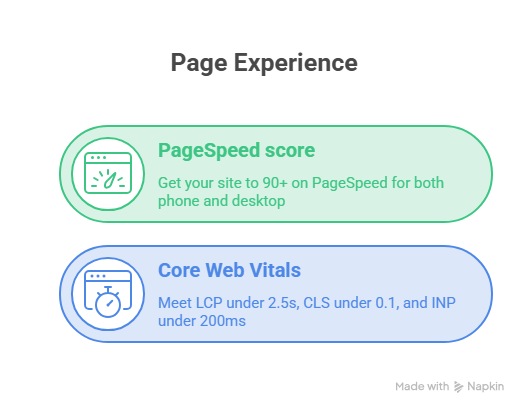
Try to get a score of 90+ on both mobile and desktop. For most WordPress sites, the fastest fix is these 3 things:
- Install WP Fastest Cache
- Compress images with ShortPixel
- Turn on lazy loading.
Doing just these 3 can take your score from failing to passing. Also check your mobile site carefully. Google uses mobile-first indexing. That means it ranks your page based on the mobile version. Even if your desktop is fast, if your mobile is slow, Google will rank you based on the slow mobile speed.
Free tool: Google PageSpeed Insights at pagespeed.web.dev.
On-Page SEO Checklist, All 15 Points at a Glance
Here is the complete checklist organised so you can work through it without losing your place.
Title Tags and Metadata: Points 1 to 3
- Title tag: unique, under 60 characters, primary keyword near the front
- Meta description: under 155 characters, clear benefit, reason to click
- URL slug: short, lowercase, keyword-focused, hyphens between words
Heading Structure, Points 4 to 5
- Don’t use multiple H1s. Use just one and add your main keyword.
- H2 and H3 headings in logical hierarchy with secondary keywords
Content Quality, Points 6 to 9
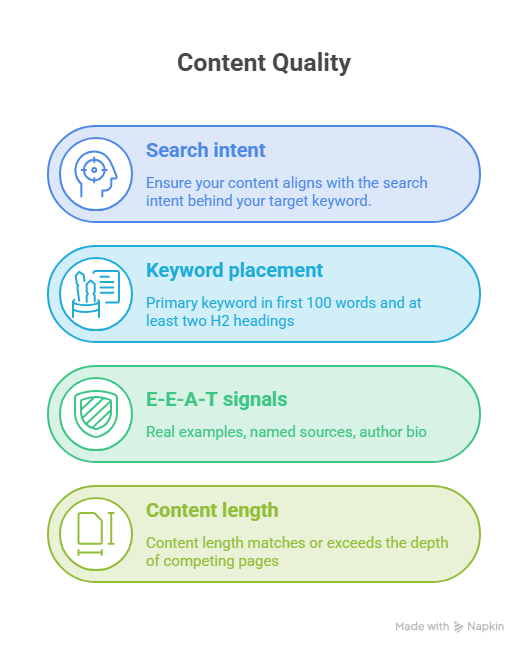
- Ensure your content aligns with the search intent behind your target keyword.
- Primary keyword in the first 100 words and at least two H2 headings
- E-E-A-T signals: real examples, named sources, author bio
- Content length matches or exceeds the depth of competing pages
Image Optimization, Points 10 to 11
- Add descriptive alt text to every image and include a relevant keyword.
- Images compressed, saved in WebP format, lazy loading enabled
Internal Linking, Points 12 to 13
- Include 3 to 4 internal links in each piece of content.
- Zero orphan pages: every key page has multiple internal links pointing to it
Schema Markup, Point 14
- Article schema on every blog post
- FAQPage schema on pages with FAQ sections
- Organisation or local business schema on homepage
Page Experience, Point 15
- Get your site to 90+ on PageSpeed for both phone and desktop
- Meet Core Web Vitals: LCP under 2.5s, CLS under 0.1, and INP under 200ms.
On-page SEO vs Technical SEO: What’s the real difference?
Technical SEO covers your website’s infrastructure: crawlability, indexing, site speed, security, and structured data. On-page SEO involves optimizing the elements on every page: title tags, headings, content, images, and internal links.
Both matter and both work together. However, technical SEO creates the foundation, and on-page SEO builds on top of it. Fix technical issues first. Then optimize every page with this checklist. Add backlinks and build authority after that.
To understand the full picture, read our complete SEO audit checklist, which covers technical, on-page, content, backlinks, local SEO, and AI search readiness in one place.
Frequently Asked Questions About On-Page SEO
What’s the #1 on-page SEO factor you need to focus on in 2026?
Matching your content to search intent is the most important on-page ranking factor.
If your page gives people exactly what they are searching for, it will rank higher.
Even if another page is technically better but misses the point, it will lose. After search intent, the 2 biggest fixes are:
- Title tag optimization – make your title match what people search for.
- Content depth – cover the topic fully so readers get all the answers
How long does on-page SEO take to show results?
On-page fixes are the fastest way to see SEO results. If you update your title tags and meta descriptions, you can see changes in just a few days after Google crawls the page again. But better content takes more time. It usually takes 1 to 3 weeks to start ranking. To make it faster, go to Google Search Console and request indexing every time you update a page.
Can I handle on-page SEO myself instead of hiring an agency?
Yes. All 15 points in this checklist are things you can do yourself.
And you don’t need to pay for any tools. If you use WordPress, the Yoast SEO plugin covers most of the basic on-page SEO work for you. However, if you want faster results or are in a competitive niche, working with an experienced agency can significantly improve the process.
What is keyword density, and how much should I use?
Keyword density means how many times your main keyword appears compared to the total words. Try to keep it at 1% to 2%.
For example, in a 1000-word article, use your keyword about 10 to 20 times. If you use it too much, it looks like keyword stuffing.
If you use it too little, Google may not understand what your page is about, especially for tough keywords. Also use related words and synonyms.
This helps your content cover the topic better and sounds more natural.
Does on-page SEO work for e-commerce and law firm websites?
Yes, and it helps both a lot. E-commerce sites usually have hundreds or thousands of product pages.
The problem? Thin content, duplicate descriptions, and missing image alt text.
If you fix these across your whole site, you can see big ranking improvements very fast. Law firm websites usually have good technical setup.
But they often lack detailed content and E-E-A-T signals.
For law firms, check our guide on law firm SEO.
It explains how to do on-page optimization specifically for legal content.
At SmartSEOEdge, on-page SEO is the foundation of every strategy we create. Want us to audit and optimize your pages? Visit our contact page for a free consultation. No commitment needed.